From a valve model
to your Plant 3D spec.
Build the shape in your browser. Let Studio create the Python script. Install it in Plant 3D, then use Spec Editor to make it available for piping.
You do not need to write Python. Start with one size, test it, and add more sizes when the first one works.
Before you start
- Open python.rkcadtools.com. Sign in with a free account when you are ready to generate or download Python.
- Have the valve maker’s dimensions ready: face-to-face length, body diameter, bore, flange dimensions and stem or actuator dimensions.
- Use a demo Plant 3D project for the first test. Keep your working project separate.
- Have Plant 3D and its matching Spec Editor installed. Direct browser transfer also needs RKCadTools, a valid plugin license and its paired browser extension. Manual installation is an alternative.
1Draw your valve
Start with the closest shape
- On the start page, choose Try the guided example to follow the five in-editor lessons with a ball valve and box actuator, or Open the editor to explore the model yourself.
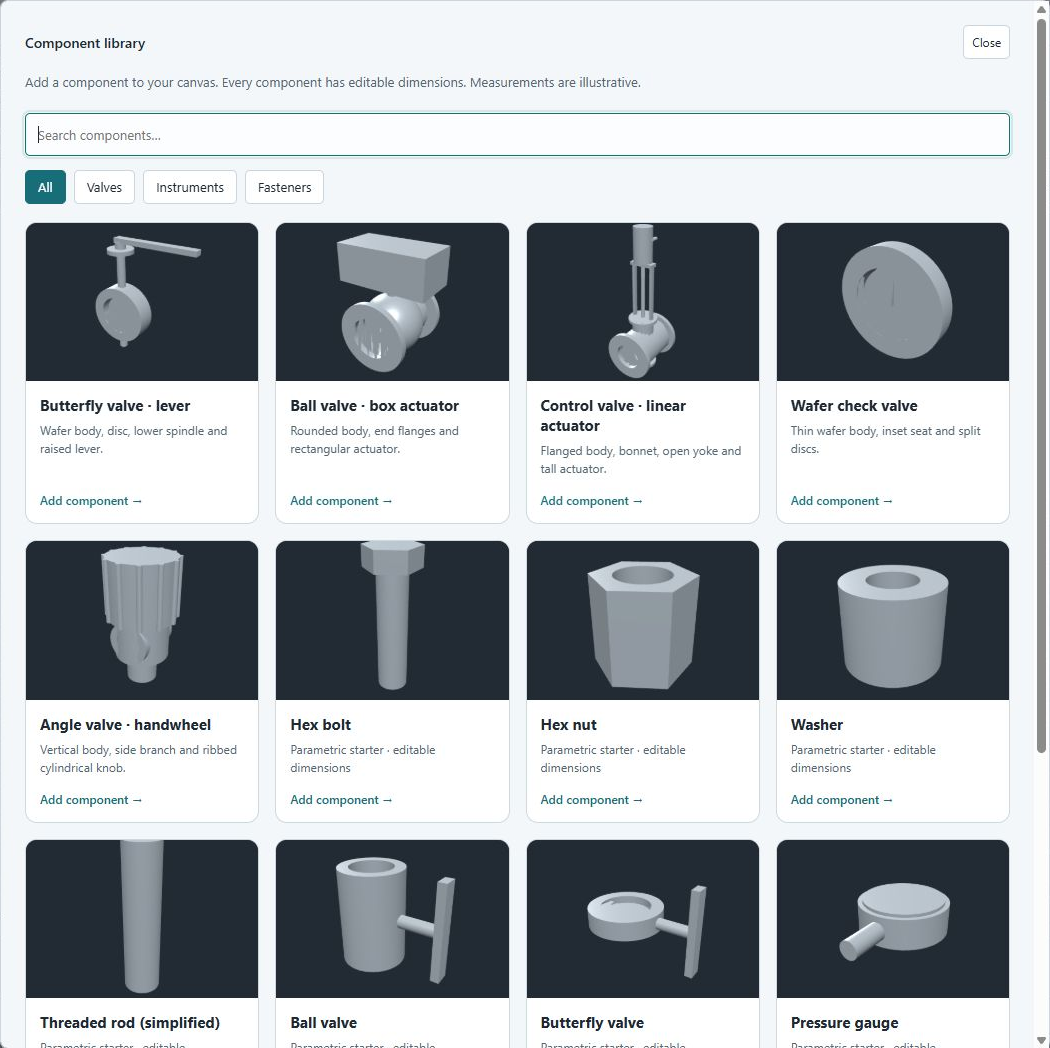
- For a different valve, save your current work, click New model, then Component library. Choose a valve starter close to your product.
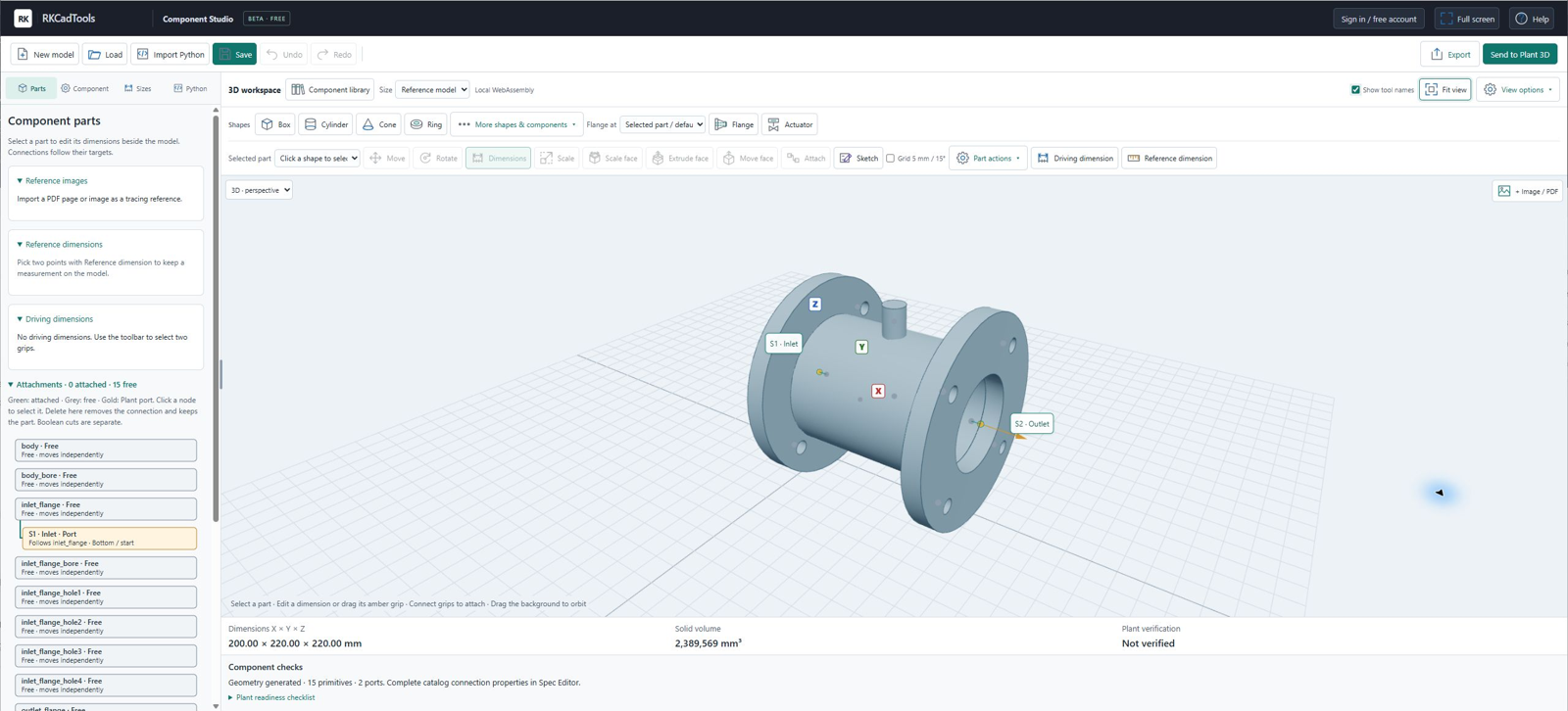
- Drag the empty background to turn the view. Scroll to zoom. Click Fit view if the model moves out of sight.
Enter the real dimensions
- Select a part in the model or the Parts list. Its editing panel opens beside it.
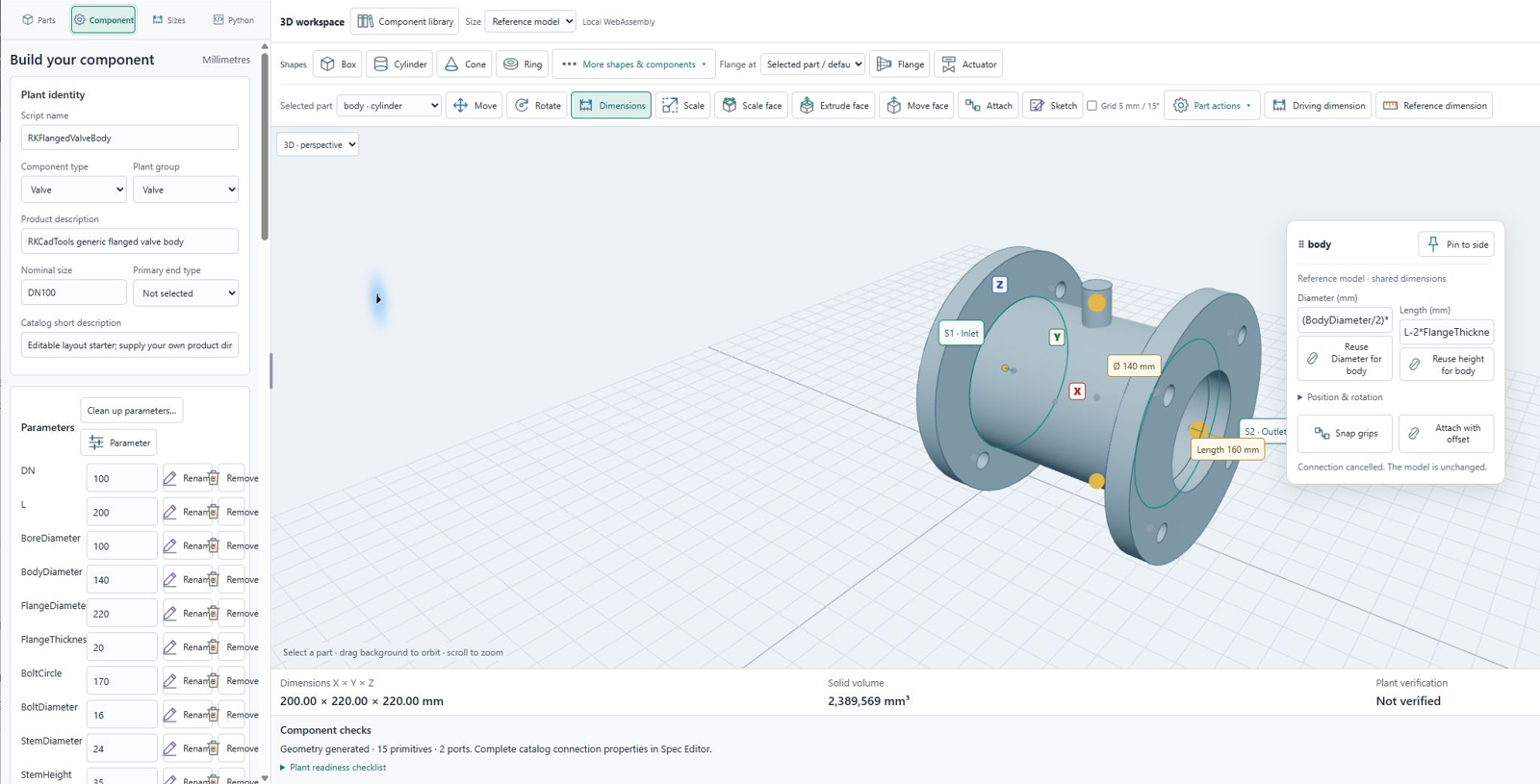
- Choose Dimensions. Enter the required diameter and length, then press Enter. Check the units: Studio uses millimetres.
- Open Component → Parameters to change shared values such as
L,BodyDiameterandFlangeThickness. A dimension can use a shared parameter or a formula. - Check the whole valve after each change. Use Undo if a change is wrong.
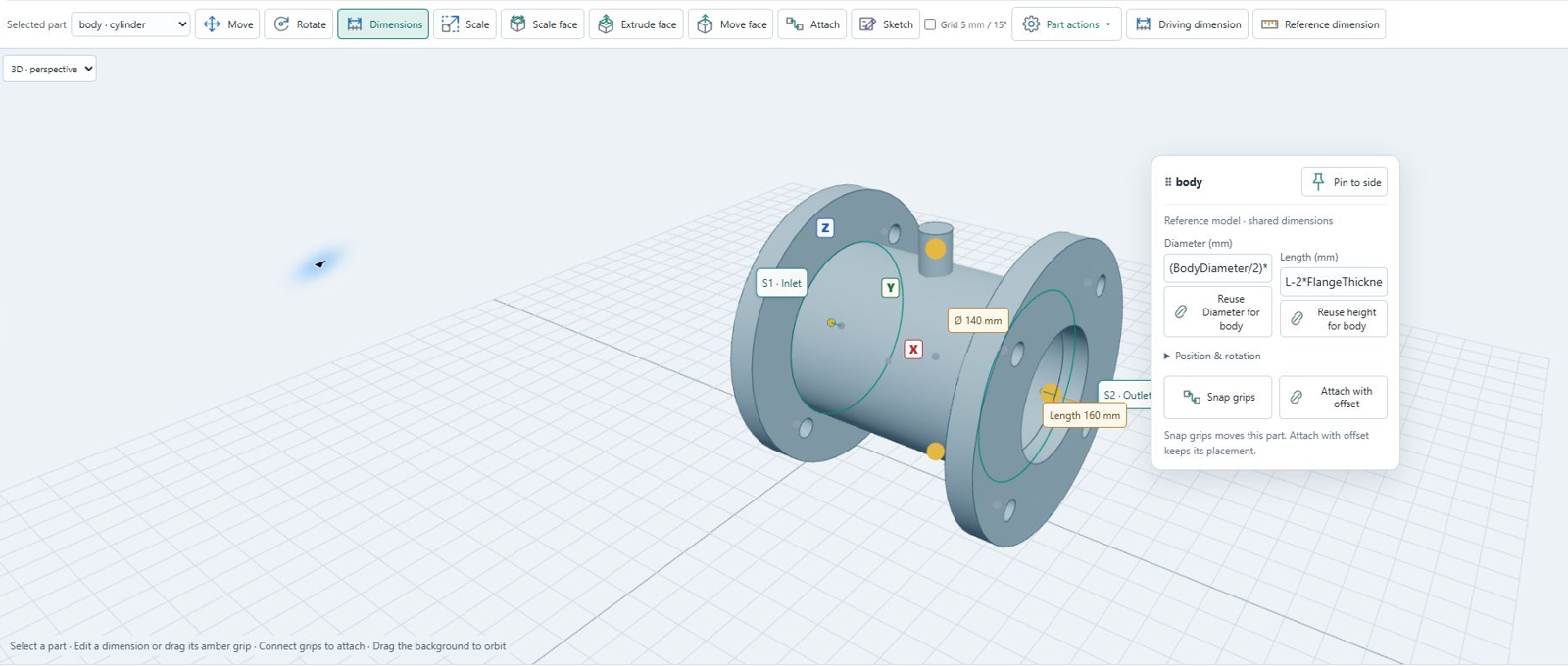
L-2*FlangeThickness. With L = 200 and two 20 mm flange plates, the body between the plates is 160 mm long.Add flanges, holes and an actuator
- Select the part you want to build onto. Choose Flange or Actuator from the toolbar.
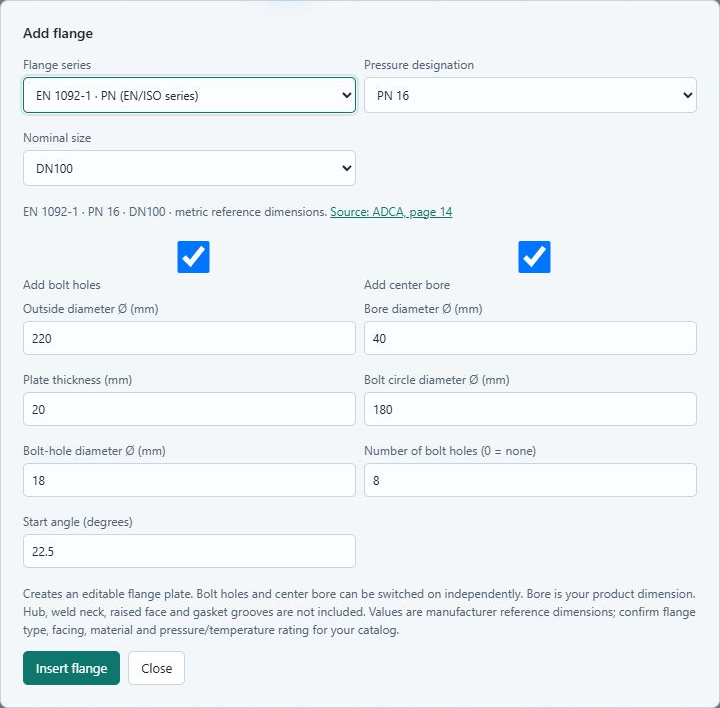
- For a flange, choose the series, pressure designation and size. Check every displayed dimension against the product drawing, including the bore. Click Insert flange when they are correct.
- For your own shape, add a box, cylinder, cone or ring. In its Geometry settings, add creates solid material; subtract cuts a hole from the chosen target. Use a subtracting cylinder for a bore.
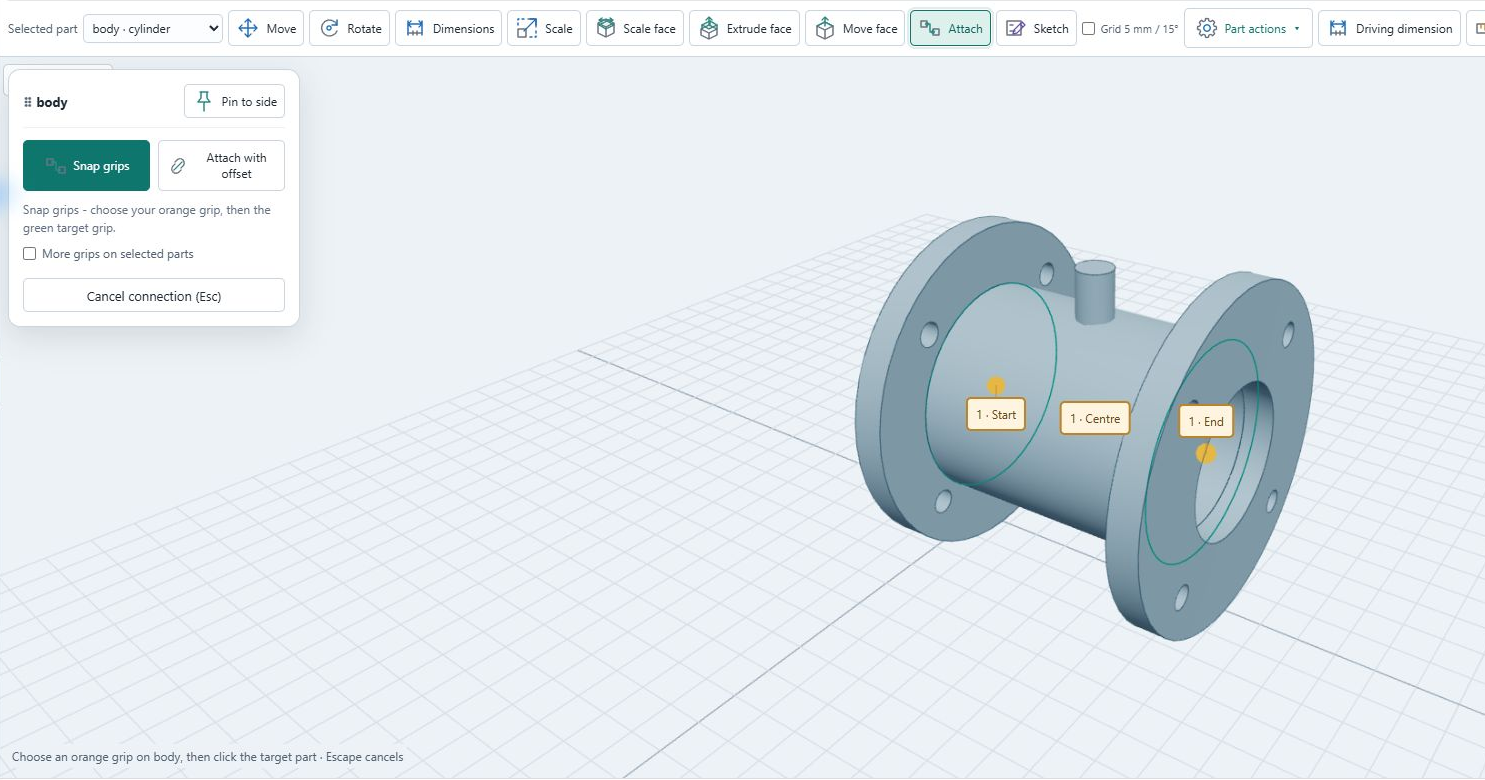
- Use Attach to keep parts together. Pick the orange grip on the source part, then a green grip on the target. Snap grips brings the grips together; Attach with offset keeps their spacing. Press Esc to cancel.
Optional tools: Move and Rotate position parts; Duplicate makes another copy; Reference image / PDF lets you keep a product drawing beside the model. Surface changes the browser appearance; it does not set the Plant catalog material.
Start from STEP
Use the four stages across the top of the STEP workspace.
- Source: click STEP simplify… and choose a STEP/STP file. The detailed model becomes a tracing reference; your current component is kept until you create the result.
- Simplify: select a source part or CAD faces in 3D. Shift-click adds regions. Choose Box, Cylinder or Cone to fit an editable shape. Select its row to edit dimensions; Remove and Undo make corrections easy. Switch between Source and Shapes to choose what clicks in 3D select. Automatic suggests geometry while preserving existing shapes.
- Connections: pick flat nozzle end faces, add individual nozzles, or detect exposed faces. Check each S1, S2… centre and outward arrow. Pick nozzle set accepts 1–16; Escape restores the previous set until placement finishes. Equipment may have no connections.
- Finish: compare the result, confirm the nozzle review, then create a new component or add the shapes to the current model. Creating a new component replaces its old geometry and size rows; Studio Undo restores them. The completion message keeps your proposal available for comparison. Choose Edit model in Studio, then save and export.
Vacuum wrap: follow the outside and fill the interior
In Simplify, choose Shrinkwrap. The wrap follows the outside like vacuum-packed plastic. Choose the whole visible model or selected whole parts. Tight to faces keeps the original closed outer surfaces and fills the interior; use zero Surface offset for the closest fit. Smooth envelope keeps the more rounded approximation. Set the surface detail and opening size to seal, then click Preview wrap. Increase sealing size only to close larger bores or bridge nearby parts. Surface offset adds approximate clearance. Open or overly complex source surfaces use the smooth envelope with a visible explanation. Enclosed cavities are filled; wide gaps can remain. The result shows its closed-body count, volume and sampling accuracy.
Compare the preview, then click Use wrap → connections. Review nozzle centres and outward arrows. In Finish, download the CAD DXF or a ZIP with DXF, STL, geometry/settings JSON and nozzle coordinates. Nozzle objects are reference markers, not Plant connectors. The freeform wrap is separate from the editable shapes and Python script; Save and Export direct you to the wrap downloads while this path is active.
Open the DXF in a copied Plant drawing. Select the closed MESH and run CONVTOSOLID using a faceted conversion option, then inspect the solid before using it in the normal equipment workflow. Native conversion still requires live validation. Autodesk: convert watertight meshes to solids.
The older Bounding boxes option is under Automatic. It creates editable primitive boxes rather than a freeform wrap. All fitting approximates the source; enter DN, pipe OD and end types from product data. Python export continues to support Valve and Instrument groups.
2Give Plant the right connections
- Open Component. Give the script a unique name, for example
RKDemoValve. Use letters, numbers and underscores; start with a letter. Keep the same name when you update this valve family. - Set Component type and Plant group to Valve. Fill in the product description, nominal size and correct primary end type.
- Scroll down to Connection ports. A normal inline valve needs two ports: S1 and S2.
- Put each port at the centre of the outer connection face. Check that its direction points outward along the pipe axis. On this X-axis starter, S1 points
-1,0,0and S2 points1,0,0. - Set the correct end type for each port, such as FL for a flanged connection. Fill in Matching pipe OD and the other connection data for the pipe standard you use. Check both ports.
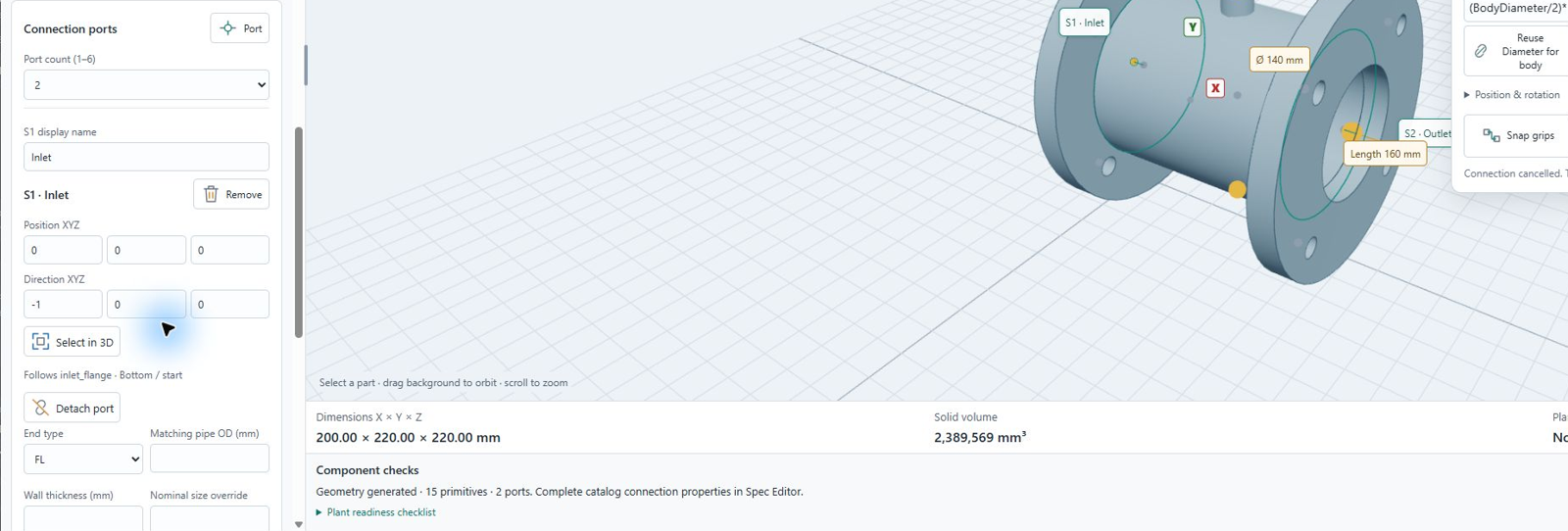
To add a port to a new part, select a grip and use Create Plant port at this point. A port that follows a part is easier to keep correct when dimensions change.
3Make one family with several sizes
- Open Sizes and choose Add current dimensions as a size.
- Give the row its size label. Add another row and enter that size’s dimensions and connection values.
- Select each row in Preview size. Check the geometry and port positions for every size.
- Use Show dimension sketch for a reference view. Select a parameter to highlight its measurement. Return to the model with View options → Dimension sketch.
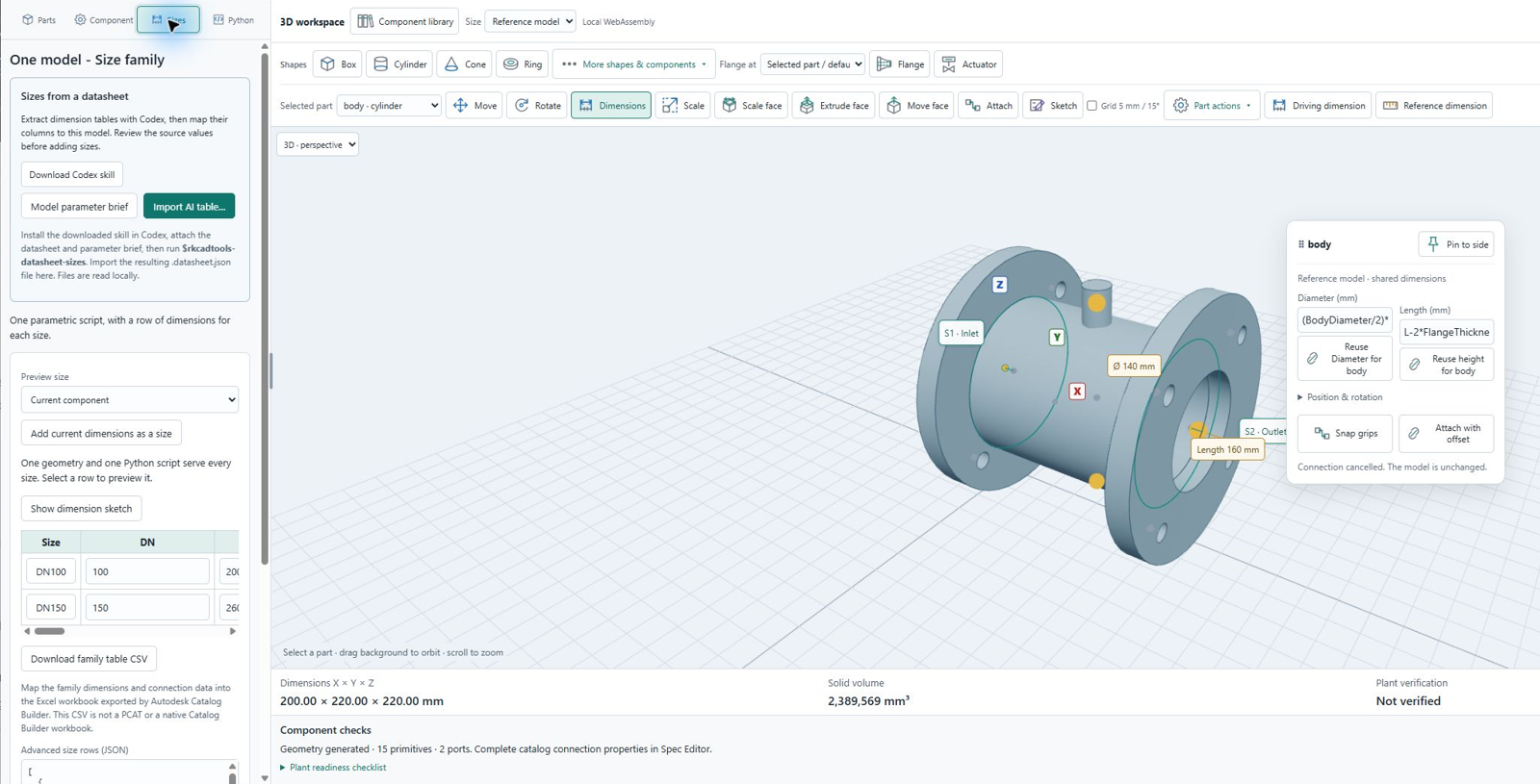
If you have a datasheet, the import controls can help prepare rows. Review the imported values against the source drawing before using them.
4Save and export your work
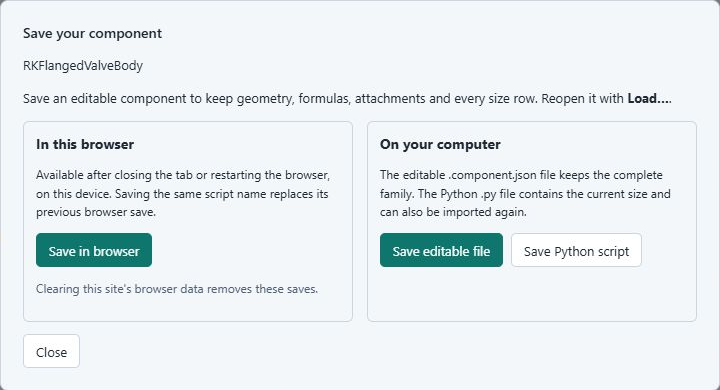
- Click Save → Save editable file. Keep this
.component.jsonfile so you can change the valve later. A browser save is convenient, but also keep a file backup. - Sign in with your free account if prompted.
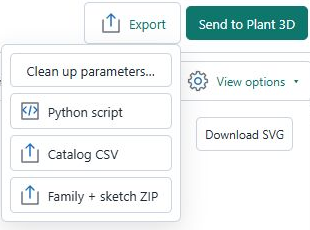
- Open Export → Family + sketch ZIP. Download the finished package. This gives you the script, family data and Plant images together.
- Extract the ZIP to a folder you can find again.
| File | What you use it for |
|---|---|
RKDemoValve.py | The shape Plant 3D registers. |
RKDemoValve_640.png, _200.png, _64.png, _32.png | Plant dimension and thumbnail images. Keep their names unchanged. |
family.component.json | Continue editing the model and sizes. |
family.csv, catalog.csv | Size and catalog input to map into Autodesk’s catalog workflow. |
| Sketch, dimension map and instructions | Help match the parameters to the product drawing. |
Names use your script name. A CSV is not a Plant catalog and cannot be opened as a .pcat. Generating Python sends the model geometry to RKCadTools; reference images stay on your device.
5Install the script in Plant 3D
Option A · Send from Studio with RKCadTools
- Open your demo drawing in Plant 3D and load RKCadTools.
- Pair the RKCadTools browser extension using the Plant command
RKCADTOOLS_BROWSER_PAIR. Follow the pairing prompts. - In Studio, click Send to Plant 3D.
- Choose Install and test in active drawing for the first test. Send the request, then review and accept it in Plant.
- Read the Plant command line for the completed result. Inspect the inserted test geometry.
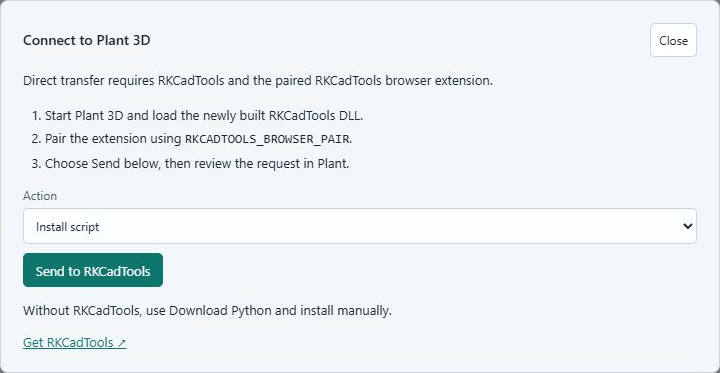
| Action | Result |
|---|---|
| Install script | Copies the script. Continue with registration below. |
| Install and test in active drawing | Installs, queues registration and tests the shape in the active drawing. |
| Verify already installed script | Checks the installed matching script. It does not install or register a new one. |
Option B · Copy the exported files manually
- In Spec Editor, check Tools → Modify Shared Content Folder to see the folder your installation uses. Cancel the dialog after checking it.
- Inside that shared content folder, open
CPak Common\CustomScripts. - Copy your
.pyfile and the four matching PNG images intoCustomScripts. Keep any earlier version as a backup outside this folder. - Continue with registration.
For example, a local Plant 3D 2026 installation may use:
C:\AutoCAD Plant 3D 2026 Content\CPak Common\CustomScriptsUse your configured folder, especially if your team uses shared content. Plant and Spec Editor must use the same location. See Autodesk’s shared content folder guidance.
6Register the custom script
Registration makes the new shape available to Plant’s catalog tools. Copying the Python file alone does not do this.
- Switch to the Plant 3D drawing editor with your demo drawing open.
- Enter
PLANTREGISTERCUSTOMSCRIPTSin the command line and press Enter. - Wait for it to finish. Check for errors. If it fails, correct the script or folder problem before making a catalog component.
- Close and reopen Spec Editor to refresh its shape list.
Autodesk documents this command as the step that compiles scripts in CustomScripts and adds their shapes to Catalog Builder and Spec Editor: Register Custom Scripts.
7Find your valve in Spec Editor
“Spec Creator” is often used for this workflow. Autodesk’s application is called Spec Editor. First create a component in a catalog; then add that component to a spec.
- Open Spec Editor for the same Plant release you registered in.
- Open your own working catalog, or a copy of a catalog, and switch to the Catalog Editor tab.
- Click Create New Component (the button can appear as Create Component).
- Set Part Category to Valves, select the suitable Valve part type, and choose the units for your catalog.
- Select Plant 3D Parametric Graphics. Find your registered script name, for example
RKDemoValve, in the shape list. Use the supported shape group/category filters if needed. - Choose the shape, set the correct number of ports and connection information, and create the component.
- Add the required sizes. Match every geometry parameter to the Studio family table. Fill in the descriptions, material, pressure/facing and connection properties required by your catalog.
- Check each size and save the catalog.
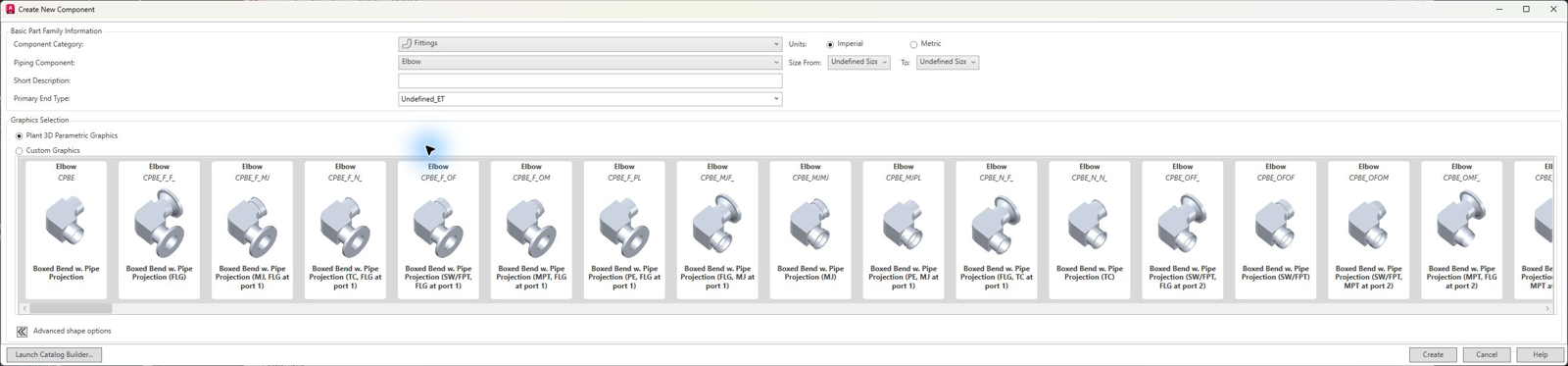
If graphics disappear after changing the end type, reopen Create New Component. Autodesk also describes selecting the shape with Undefined_ET, then setting the actual end type on the created family. Do not leave the finished valve with an undefined connection. Autodesk’s workaround.
Several sizes? Use Catalog Builder
In Catalog Builder, choose a custom script based shape under its advanced options. Export the native Excel workbook, map the Studio family dimensions and connection values into its columns, and build the catalog through Catalog Builder. Keep the Autodesk workbook’s format. Do not rename the Studio CSV to .pcat. See Autodesk’s Catalog Builder walkthrough.
8Add it to a spec and place it
- Switch to the Spec Editor tab and open a demo spec.
- Browse your saved catalog. Find the valve by its description, select the sizes you need, and choose Add to Spec.
- Review the spec rows and size availability, then save the spec into the demo project’s Spec Sheets location using your normal project workflow.
- Return to Plant 3D. Select that spec and the required nominal size. Open the Spec Viewer / valve selection and find your valve description.
- Insert the valve into a matching demo pipe. Check orientation, length and connections.
- Make a small test isometric and check the parts list: valve description, size and quantity should be correct. Complete the catalog’s isometric symbol and connection settings if needed.
If something does not work
I cannot find the shape in Spec Editor
Check that the Python file is in the configured CustomScripts folder. Run PLANTREGISTERCUSTOMSCRIPTS in the matching Plant release, check its result, then reopen Spec Editor. Check the category/group filters and your exact script name. An Install script request still needs registration.
The valve is in the catalog, but not in the drawing list
Add its required sizes to the spec, save the spec and select that same spec and size in Plant. Check that the project is using the updated spec file.
The valve does not connect to the pipe
Check both port positions and outward directions. In the catalog and spec, check nominal size, matching pipe OD, end types and other required connection properties against the pipe and flange standard.
The preview or dimension image is missing
Copy all four PNG files beside the script and keep the same script-name stem. In the catalog workflow, use the 200 image for the thumbnail and the 640 image for the dimension view where those image fields are available.
A larger size looks wrong
Select that row in Studio. Check its dimensions, formulas and attached parts. Every size needs its own correct product data. Re-export and update the installed files, then register and retest the changed family.
Send to Plant does not complete
Check that RKCadTools is loaded and licensed, the browser extension is paired, and the correct demo drawing is active. Review the request in Plant and read the command line result. You can use manual installation if direct transfer is unavailable.